A materials library built into the render workflow
Over 2,000 curated materials with rendered previews: woods, stones, fabrics, tiles, metals, wallpapers, and paint colors. Apply one to any element in your scene and the material description and reference are filled for you. Add your own, organize them, and share a library with your studio.
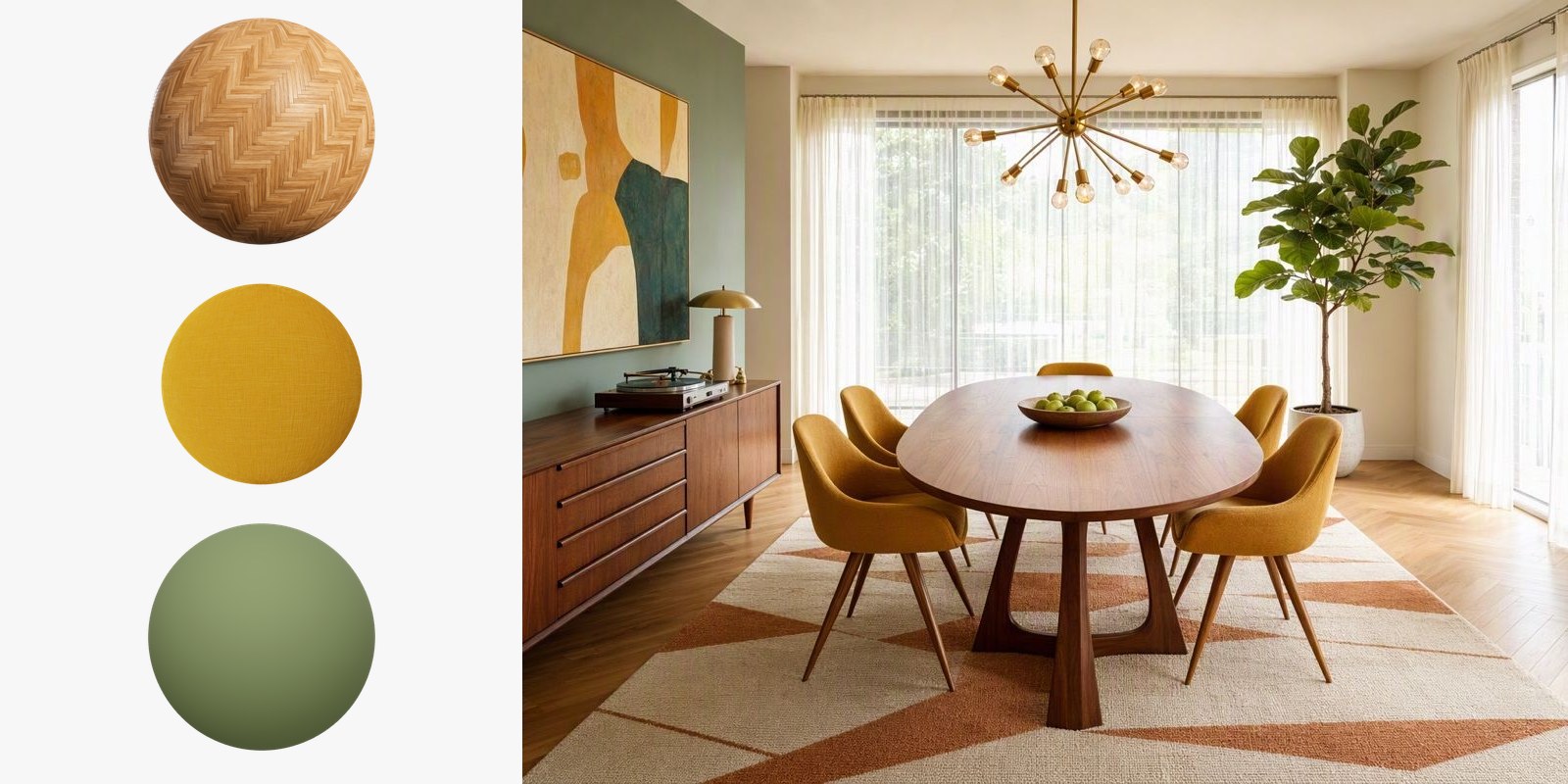
The finishes in this scene, as library entries: warm oak herringbone flooring, marigold yellow coarse-weave linen, and the Moss paint color. Pick one, click an element, render. The finish you chose is the finish you get.
HOW IT WORKS
01
Pick an element
Auto-analysis has already masked every element in your scene. Click the floor, the counter, the wall.
02
Apply a material
One click fills the element’s material description and reference image. Adjust in plain language if you want something in between.
03
Render
The engine renders your scene with those materials. Browsing and applying cost nothing; credits are spent only when you render.
Stock, personal, and team — side by side
2,000+ curated materials
Every entry is hand-curated from CC0 sources, described in words an engine understands, and shown as a rendered preview so you can judge the finish before applying it. Search covers names and full descriptions, so “walnut” finds walnut.
Your own materials
Save the finishes you actually specify: a supplier's oak sample, a client's tile photo. Batch-import up to 200 files by dragging in a folder; each one is auto-described and gets its own rendered preview. Edit categories and tags in place.
One library per studio
Switch on the shared library in a teamspace and the studio specifies from the same set. Share existing personal materials into it, per item or in bulk; they stay in your personal view too.
The materials library is included on every plan, including Free.
Questions about materials
Can I use the stock materials commercially?
Yes. The stock library is built from curated CC0 (public domain) sources, so there are no license strings attached, and every render you make is yours to use commercially on every plan.
Can I add my own materials?
Yes. Save materials one at a time, or batch-import up to 200 files at once by dragging in a folder. Each import is automatically named and described, gets a rendered preview, and can be organized with categories and tags.
Do materials work with every render engine?
Yes. Applying a material fills the element’s description and reference image, which is exactly what every engine reads. Pick any mode afterwards.
How does sharing with my team work?
Turn on the shared library in your teamspace settings. From then on, members can save materials to the team library and share existing personal materials into it, individually or in bulk. Shared items stay in your personal library too.
Specify real materials, not style filters
5 free credits — up to 10 renders, no watermark, no card required.
START FREE