Best AI Rendering Tools for SketchUp in 2026
AI rendering tools for SketchUp convert your model views into photorealistic images, most with no GPU required. This page compares 7 tools — VizBase, Veras, D5 Render, mnml.ai, MyArchitectAI, ArchiVinci, and Visoid — across native plugin support, output quality, and pricing. Three offer a true SketchUp plugin (VizBase, Veras, D5 Lite); four are upload-based. Free tiers or trials available on all seven.
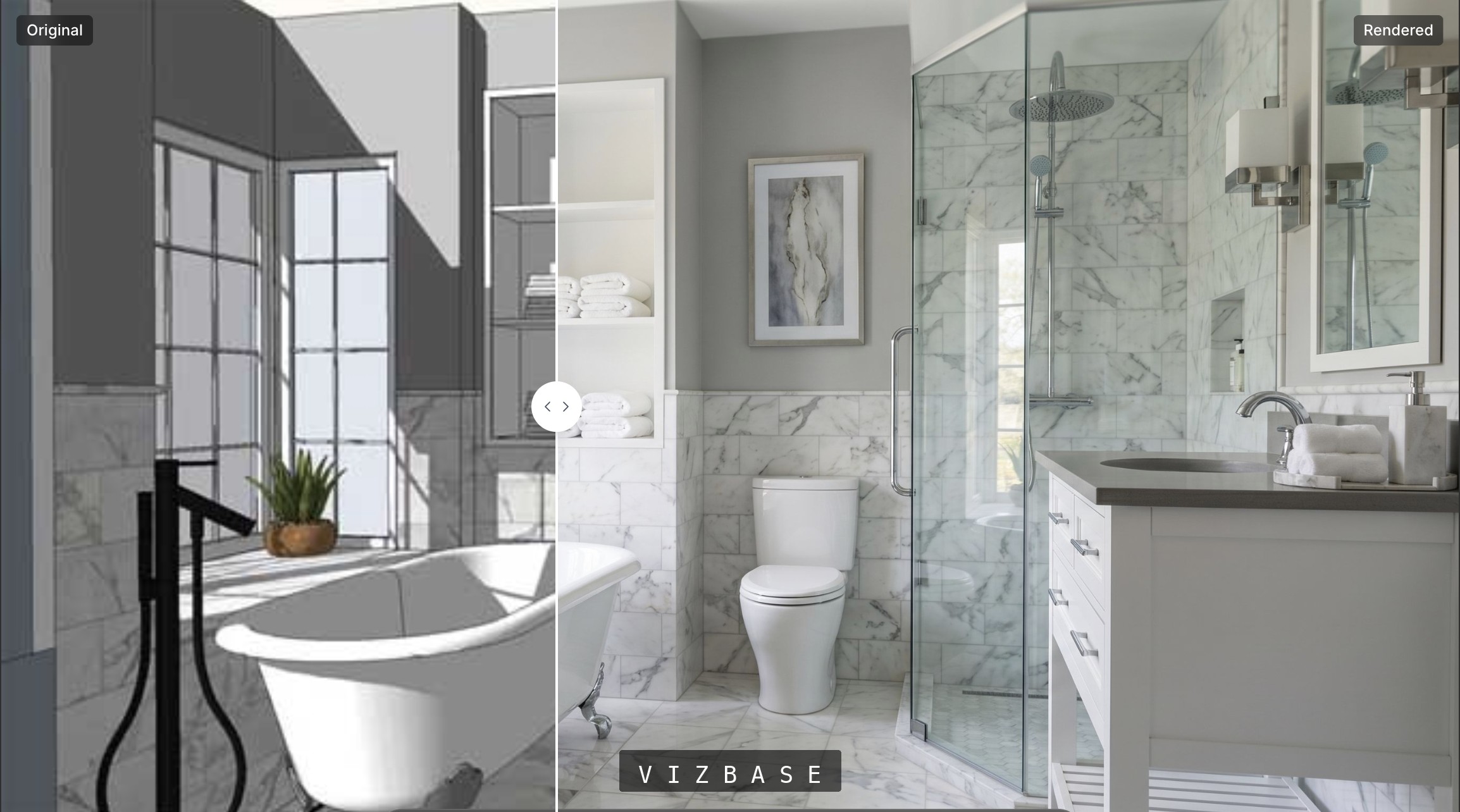
SketchUp is the most-used 3D modelling tool among architects, interior designers, and small studios — and the one most reliant on bolt-on rendering. In 2024 the only real options were V-Ray, Enscape, Lumion, and a long tail of plugin-based engines that demanded a GPU workstation and weeks of training. By 2026, AI rendering has changed the maths: you can take a SketchUp screenshot and have a photorealistic render back with no GPU, no scene setup, and no licence cap on hardware.
We compared seven AI rendering tools that work with SketchUp — three with native plugins, four browser-based — across workflow integration, output quality, pricing, and what they can and can't do. This is an honest comparison. We built VizBase and we include it, but we rank fairly.
Plugin vs upload-based AI rendering — which is right for SketchUp users?
The first decision when picking an AI rendering tool for SketchUp is whether you want a plugin that runs inside SketchUp or a browser tool that takes uploads. The trade-off matters more than most listicles admit.
Plugin-based tools(VizBase, Veras, D5 Lite) live inside the SketchUp viewport. You capture the current view from inside SketchUp — no exporting, no file dragging, no losing your camera angle. Veras and D5 Lite work from the model geometry itself, not just the pixels of a screenshot, which helps geometric accuracy. The VizBase plugin sends a flat image of the view, so its advantage is skipping the export step, not extra model data. Plugins also keep your workflow inside SketchUp so junior staff don't need a second tool to learn.
Upload-based tools (mnml.ai, MyArchitectAI, ArchiVinci, Visoid) take screenshots or exported views and generate from those. The upside is they work with any 3D tool — Revit, Rhino, Archicad, Vectorworks — so if your studio runs multiple modelling tools, one upload-based subscription serves all of them. The downside is the extra steps: export view, switch to browser, upload, wait, download.
For pure SketchUp studios, a plugin almost always wins on day-to-day workflow. For mixed-tool teams, the flexibility of an upload-based subscription can be worth the extra clicks. We'll flag plugin support on every tool below so you can filter quickly.
1. VizBase
Best for: SketchUp users who want a native plugin, per-element material control, and a free tier to evaluate on a real project. Not for: real-time walkthroughs, VR, or animation deliverables.
VizBase is cloud-based AI rendering with a native SketchUp plugin. You install the VizBase pluginvia SketchUp's Extension Manager (a single .rbz file), open any model, capture the current view with one click, and get a photorealistic render back without leaving SketchUp. The same workflow works on uploaded screenshots if you're on the free tier or on a device without the plugin installed.
The differentiator versus other AI tools is per-element control. VizBase auto-detects every element in your captured view — walls, floors, glazing, kitchen island, cladding, planting — and lets you specify materials separately rather than describing the whole image at once. For SketchUp users doing client revisions, this is the difference between “rewrite the whole prompt and hope” and “change the cabinet finish from walnut to oak” without starting over.
Four render modes are available — Gen 2.0 stays closest to the source image, including its lighting, and is the fastest; Gen 2.1 makes creative interpretations and works best with reference images; Gen 3.0 brings strong material realism and drops drawn SketchUp outlines; Gen 4.0, the newest, gives photographic light and materials, true to the design. For the full install steps, the capture-to-render workflow, and tips for better SketchUp output, see our VizBase SketchUp plugin walkthrough. And if your question is how to make the output actually read as a photo, the SketchUp photorealistic rendering guide covers the material and lighting phrasing that does it.
Pricing: Free tier (5 credits/month, up to 10 renders, browser only), Starter €29/mo, Pro €59/mo, Studio €109/mo. The SketchUp plugin is available from the Starter tier and above. Annual billing saves 15%.
Strengths: Native SketchUp plugin with one-click view capture, per-element material control, Refine and Multiview inside the plugin, 4K, 6K and 8K exports, cloud-based (no GPU), genuine free tier. Limitations: Still imagery only — no real-time walkthrough, no animation, no VR. The plugin sends a flat image of the view, not the model, and small fixtures can drift. Plugin requires Starter tier (€29/mo) — the free tier is browser-upload only.
2. Veras (by Chaos)
Best for: Firms already in the Chaos / V-Ray ecosystem who want AI rendering inside the same CAD plugin they already use. Not for: studios that want stylised, painterly, or moody concept outputs.
Veras is the AI rendering plugin from Chaos (the V-Ray and Enscape company). It installs into SketchUp via the Extension Warehouse and supports SketchUp 2021 through 2026, plus Revit, Rhino, Archicad, and Vectorworks. The selling point is geometry preservation — Veras applies AI rendering to your live model rather than a screenshot, which means edge accuracy is unusually high for an AI tool. For BIM-heavy practices already paying for V-Ray, Veras feels like a natural extension of the existing toolchain.
The trade-off is stylistic range. Veras outputs lean toward conventional architectural-render aesthetics. If you want moody, cinematic, or painterly concept visuals, you'll find the model more conservative than something like VizBase or mnml.ai.
Pricing: 14-day free trial with 100 Chaos credits, no free tier. Starter €15.90/month or Pro €27.50/month, billed annually (chaos.com, September 2026); one personal license works on any device.
Strengths: Strong geometric accuracy, native SketchUp plugin, fits inside an existing Chaos/V-Ray workflow, multiple CAD hosts. Limitations: Conservative output style, no free tier after the trial.
3. D5 Render
Best for: SketchUp users with an RTX-class workstation who want a real-time path-traced engine plus AI features in one tool. Not for: MacBook-only users or anyone needing a pure browser-based workflow.
D5 Render isn't purely an AI rendering tool — it's a real-time path-traced renderer with AI features bolted on top. The D5 Lite for SketchUp plugin supports SketchUp 2021.1 through 2026 and offers live model sync, so changes in SketchUp appear in D5 instantly. Pro-tier users get the AI features: Style Transfer, Inpainting, Atmosphere Match, and Ultra HD Texture enhancement. The Community Edition is free and genuinely usable for paid client work, but the AI features are locked to Pro.
Where D5 wins is output quality on hero shots — the real-time RTX engine produces results that rival Lumion or Twinmotion. Where it loses to pure cloud AI tools is hardware requirement: you need a workstation with an RTX 2060 or better.
Pricing: D5 Community is free (1080p, watermarked partial asset library, no AI features). D5 Pro is approximately $38/month on annual billing or $48/month month-to-month. Team plans from $30 per seat per month (two-seat minimum).
Strengths: Real-time path tracing with NVIDIA RTX, AI features bundled in Pro, strong free tier on the engine itself, native SketchUp plugin with live sync. Limitations: Requires RTX-class GPU (Community needs it too for real-time), AI features are Pro-only, steeper learning curve than pure cloud AI tools.
4. mnml.ai
Best for: Interior designers iterating on moodboards, concept visuals, and style explorations from SketchUp screenshots or sketches. Not for: studios needing in-viewport feedback during modelling.
mnml.ai is one of the most established cloud AI rendering platforms, reporting over 2.2 million users. It accepts SketchUp exports, Revit and Blender file imports, and freehand sketches into the same ArchDiffusion engine. The 4K upscaling and text-to-render features are well-developed, and the output style range is broader than Veras — good for concept boards and mood exploration.
The workflow is purely upload-based — no SketchUp plugin. You export a view or screenshot, drop it into the web app, and pick a style preset or describe the materials. Mnml uses credit-based pricing, so heavy users on entry tiers can hit caps mid-month.
Pricing: Free tier available. Basic $19/mo, Pro $39/mo, Expert $79/mo, Enterprise from $499/mo. Credit-based metering across all paid tiers.
Strengths: Mature platform, wide input range (sketches, screenshots, file imports), 4K upscaling built in, large style library. Limitations: Credit caps on lower tiers, no SketchUp plugin, no real-time iteration.
5. MyArchitectAI
Best for: Solo architects and students who want predictable flat-rate pricing and high render volume. Not for: studios that want to set materials element by element.
MyArchitectAI's pitch is simplicity: $29/month, unlimited renders, no credit metering. Upload a SketchUp screenshot, pick a style preset, get a render in about ten seconds. The 10-render free trial is generous for evaluation, and the platform runs entirely in the browser — including on tablet or mobile.
The trade-off is geometry fidelity. Because MyArchitectAI interprets a 2D screenshot rather than working from your SketchUp model, output edges can sometimes drift from the source by a few percent. For mood boards and early-stage client presentations this rarely matters; for late-stage construction documents it can.
Pricing: 10 renders free trial, then $29/month for unlimited renders. Flat-rate, no credit tiers.
Strengths: Flat-rate unlimited renders, very fast turnaround (about 10 seconds), runs on any device, near-zero learning curve. Limitations: Screenshot-based — weaker geometry preservation than tools that read the model (Veras, D5), less granular control than VizBase per-element masking.
6. ArchiVinci
Best for: Freelancers with bursty, project-based workloads who don't want a year-round subscription. Not for: studios with steady weekly render demand.
ArchiVinci is unusual among AI rendering tools in that it offers time-bounded one-off plans rather than only monthly subscriptions. Pay $39 for three days of unlimited renders, $79 for a month, scaling up to $699 for a year. For a freelance architect with a single intense project, this can be substantially cheaper than a subscription you'd only use half the time.
The platform covers interiors, exteriors, masterplans, virtual staging, and moodboards in a single tool — useful for studios that span concept through presentation. Output quality is solid on interiors and somewhat less consistent on exteriors and unusual inputs.
Pricing: Free account with limited monthly renders. One-off plans: 3 days $39, 1 month $79, 3 months $189, 6 months $349, 12 months $699. Unlimited renders during the active period.
Strengths: Time-bounded pricing suits freelance workloads, wide module range (interior, exterior, masterplan, staging), unlimited renders during active period. Limitations: Output quality varies by module, no SketchUp plugin, smaller brand presence than Veras or D5.
7. Visoid
Best for: European practices focused on exterior architectural visualisation and studios wanting an API for internal tooling. Not for: interior designers needing detailed material control inside the model.
Visoid is Oslo-built and shows it in the output — particularly strong on contemporary Nordic and European exterior styles. The platform runs in the browser, accepts SketchUp exports as uploads, and exposes a usage-based API for studios building their own internal rendering pipelines. The educational discount (50%) makes it attractive for architecture schools and student licences.
Visoid lacks a SketchUp plugin and live sync — purely upload-based. The asset library is smaller than D5's and the style range is narrower than mnml.ai, but for the specific niche of European exterior architecture it punches above its weight.
Pricing: Free plan (30 renders/month at 1K resolution). Premium approximately €55/month. Usage-based API tier available. 50% educational discount.
Strengths: Strong on European and Nordic exterior styles, API access for studios building integrations, generous free tier, educational pricing. Limitations: Upload-only (no SketchUp plugin), smaller asset library, less control over interior material detail.
Quick comparison table
| Tool | SketchUp Plugin | Paid From | GPU Required | Free Tier |
|---|---|---|---|---|
| VizBase | Yes (Starter tier+) | €29/mo | No (cloud) | 5 credits/month |
| Veras (Chaos) | Yes | €15.90/mo (annual) | No (cloud-rendered) | 14-day trial |
| D5 Render | Yes (D5 Lite) | ~$38/mo | Yes (RTX 2060+) | Community Edition |
| mnml.ai | No (upload) | $19/mo | No (cloud) | Yes (credit-limited) |
| MyArchitectAI | No (upload) | $29/mo | No (cloud) | 10-render trial |
| ArchiVinci | No (upload) | $39 / 3 days | No (cloud) | Yes (limited) |
| Visoid | No (upload) | ~€55/mo | No (cloud) | 30 renders/month |
Which tool for which kind of SketchUp user
Solo architects and freelancers on a MacBook get the most from cloud-based tools — VizBase if you want one-click capture inside SketchUp, or MyArchitectAI if you prefer the simplest upload workflow with flat-rate unlimited renders. Both eliminate the GPU workstation cost and run on any laptop.
Interior designers doing client revisions in SketchUp benefit most from per-element control. VizBase's auto-detection of walls, floors, glazing, and furniture means you can change one cabinet finish without starting over — the iteration loop that wins client meetings. It's also a direct way to generate complete AI interior design visuals from a SketchUp model without leaving the viewport. See our detailed interior-designer focused comparison for more on this workflow.
BIM-heavy practices already paying for V-Ray or Enscape should look at Veras first — it slots into the existing Chaos plugin ecosystem with minimal training cost. If you also do real-time walkthroughs, D5 Render is the natural complementary tool.
Small studios doing exterior architectural visualisation in a European context will find Visoid's output well-tuned for that aesthetic. For mixed interior/exterior workloads, VizBase or mnml.ai cover both better — and VizBase's AI exterior design generator handles facade and landscape rendering from any SketchUp export.
Project-based freelancerswith bursty workloads should consider ArchiVinci's time-bounded pricing — three days at $39 is hard to beat for a single intense charrette. For steady weekly use, a monthly subscription on any of the other tools is cheaper.
SketchUp rendering software: render engines, AI Render, or an AI tool?
SketchUp's viewport shows styled model views, not photographs, so a realistic image takes extra software. “SketchUp rendering software” can mean three things: a render engine that works from your model, SketchUp's own AI Render, or a cloud AI rendering tool like most of the seven above.
Render engines (V-Ray, Enscape, Lumion, Twinmotion, and D5 Render, which is on the list above for its AI features) calculate light from the materials, lights and camera in your model. They give the most control and cover animation, walkthroughs and VR. The cost is setup: you build the materials and lighting first, and most of them render on your own computer, so the real-time engines need a capable graphics card.
SketchUp AI Renderis built into SketchUp for Desktop, iPad and Web. It combines the current viewport with a text prompt or a style preset and lets you mask areas of the result to edit them. It is included with SketchUp Go, Pro and Studio: those plans come with 100–200 AI credits a month and each image costs 10, so 10–20 renders a month, or 150 more with the $11.99/month credit add-on (Trimble, September 2026). If you already pay for SketchUp, it is the quickest way to try AI rendering.
Cloud AI rendering tools mostly work from a view rather than the model: capture or export it, describe the materials, and get a photorealistic still back, with no scene setup and no GPU on your side. They make more sense than AI Render when you need more renders than the monthly credits cover or large exports (VizBase exports 4K, 6K and 8K), or, with VizBase, want to set materials element by element. They are built for stills rather than walkthroughs or VR (Veras can also turn an image into an AI video), and because they interpret an image, small details can drift.
So the best rendering software for SketchUp depends on the output. For animation, walkthroughs and VR, pick a render engine. For client stills and fast design iterations, an AI tool is quicker to learn and needs no workstation. Many studios keep one of each.
For a deeper look at how AI rendering compares to traditional renderers like V-Ray and Lumion, see our AI rendering vs V-Ray vs Lumion comparison. If you've already settled on VizBase and want to see the plugin in action, jump to the SketchUp plugin walkthrough.
Frequently asked questions
Which AI rendering tools have a native SketchUp plugin?
Three tools in this comparison ship a native SketchUp plugin that runs inside the SketchUp viewport: VizBase (Starter tier and above), Veras (by Chaos, available via the Extension Warehouse for SketchUp 2021–2026), and D5 Lite for SketchUp (D5 Render, with live model sync). The other AI rendering tools — mnml.ai, MyArchitectAI, ArchiVinci, Visoid — are upload-based, meaning you export a screenshot or view from SketchUp and drag it into the web app.
Is there a free AI rendering tool for SketchUp?
Yes. VizBase has a free tier with 5 credits a month (up to 10 renders) and runs in any browser — no SketchUp plugin required to start. D5 Render Community Edition is free and includes the SketchUp Lite plugin, but requires an RTX-class GPU to run. mnml.ai, ArchiVinci, and Visoid all have free tiers with limited monthly credits. For pure browser-based AI rendering with zero hardware requirement, VizBase is the lowest-friction free option for SketchUp users.
Can AI rendering replace V-Ray or Enscape for SketchUp?
For still images and client presentations — yes, in most cases. AI rendering tools produce photorealistic SketchUp renders without setting up materials, lights, and cameras. V-Ray and Enscape still win for animations, VR walkthroughs, and projects requiring pixel-level control over global illumination. The honest answer for 2026: most SketchUp studios use AI rendering for fast iteration and client previews, and keep V-Ray or Enscape for high-stakes final deliverables.
Do I need a GPU for AI rendering with SketchUp?
It depends on which tool you choose. Cloud-based AI rendering tools (VizBase, MyArchitectAI, ArchiVinci, mnml.ai, Visoid, Veras) run on remote servers and require only a SketchUp-capable laptop plus an internet connection — no dedicated GPU. Real-time hybrid tools like D5 Render require an RTX 2060 or better. If you already own a GPU workstation for V-Ray or Enscape, D5 is the natural upgrade. If you run SketchUp on a MacBook or older PC, choose a cloud-based tool.
Will the AI render preserve my SketchUp geometry exactly?
Plugins that read the actual 3D model (Veras, D5) tend to preserve geometry better than tools that work from a 2D image. The VizBase plugin captures your current view as a flat image, like an upload without the export step, and VizBase does not guarantee unchanged geometry: it keeps your layout and the main pieces, but small fixtures and repeated joints can drift. Upload-only tools like MyArchitectAI and ArchiVinci also interpret a screenshot — they get the materials right but can sometimes shift edges by a few percent.
Can I use my SketchUp materials in AI rendering?
AI rendering tools don't read SketchUp material assignments directly — they interpret the visual appearance of the captured view. The workflow is different: you describe the materials in natural language ("warm oak floors, white marble countertop, sage green walls") rather than assigning textures inside SketchUp. VizBase goes further by auto-detecting every element in your scene (walls, floors, furniture, glazing) and letting you specify materials separately per element. Most users find this faster than maintaining a SketchUp material library.
What's the best AI rendering plugin for SketchUp in 2026?
For pure AI rendering with the strongest SketchUp workflow integration: VizBase. The combination of a native SketchUp plugin (Starter tier), per-element material control, Refine and Multiview inside the plugin, and a free tier for evaluation makes it the strongest choice for most SketchUp users. Veras is the next-best plugin option for studios already in the Chaos/V-Ray ecosystem. For SketchUp users who want a real-time engine with bundled AI features, D5 Render is the best choice — provided you have an RTX-class GPU.
Try Vizbase on your SketchUp views — 5 free credits (up to 10 renders), no GPU, no credit card
Export a view from any SketchUp model, upload it, and see photorealistic AI rendering on your own project. The plugin is included from the Starter plan — start with the free browser tier to evaluate first.
GET STARTED FREE